---
title: Pubstack side
description: "How to implement a new website on our platform \n\n[ Add website - new page - implementation ]"
---
[Skip to content](https://help.pubstack.io/migration/pubstack-side#main-content)
English
Show submenu for translations
[Contact us](https://help.pubstack.io/migration/kb-tickets/new?hsLang=en) [Customer portal](https://help.pubstack.io/tickets-view?hsLang=en)
![Logo Pubstack white.svg\]](https://help.pubstack.io/hubfs/Logo%20Pubstack%20white.svg)
Open main navigation
Close main navigation
- English
Show submenu for translations
- [Contact us](https://help.pubstack.io/migration/kb-tickets/new)
- [Customer portal](https://help.pubstack.io/tickets-view)
- Go to Pubstack
Go to Pubstack
Welcome on our knowledge base
- There are no suggestions because the search field is empty.
1. [Knowledge Base](https://help.pubstack.io/migration?hsLang=en)
2. [Ad Management (One)](https://help.pubstack.io/migration/ad-management-one?hsLang=en)
3. [Implementation](https://help.pubstack.io/migration/ad-management-one?hsLang=en#implementation)
# Pubstack side
## Pubstack allows publishers to handle their monetization site by site. In order to do so, some configuration needs to be done in the app before moving forward to stacks management.
See: [Stacks management](https://help.pubstack.io/stacks?hsLang=en)
#### Add **a website**
You can find the websites you’ve already added in the Sites section of the app at: [app.pubstack.io/adstack/sites](https://app.pubstack.io/adstack/sites).
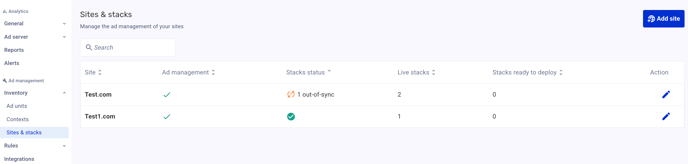
This page gives a recap of all the sites currently present within the Pubstack app. The following information can be found:
**Ad management:** Indicates whether the website is monetized by Pubstack or not.
**Stacks status:** Indicates the status of the stacks:
 Stacks are deployed and live
 Stacks are out of sync, they need to be synchronized then deployed
 There are no existing stacks
**Live stacks:** Number of stacks currently live for this site.
**Stacks ready to deploy:** Number of stacks currently requiring a deployment for the site.
**Action:** Edit the site.
This list doesn’t guarantee that all the websites displayed are correctly plugged with Pubstack.
In order to add a new website to to active scope, you can click on *Add site*, which will redirect you to the Settings page of the app.
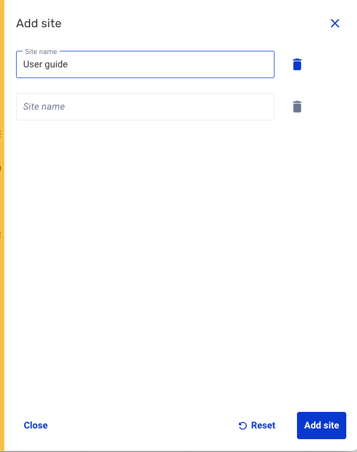
You will then need to click on *Add site* again, which allows you to create several websites at once. Click *Reset* if you want to clean your inputs, or on *Add site* to move forward.
Once your site is added, you can go back to the Site section of the left navigation bar ([https://app.pubstack.io/adstack/sites](https://app.pubstack.io/adstack/sites)), and click on it to start the configuration.
#### Activate Ad management on a site
Back to the main page [https://app.pubstack.io/adstack/sites](https://app.pubstack.io/adstack/sites), you can click on the website you wish to activate Ad management on. To do so, you simply need to toggle the Ad management button.
Please note that this action **cannot be undone manually** in the app, to prevent a Site’s monetization to be broken, and will require help from Pubstack support to revert.
Once Ad management is enabled, the configuration of the site is open.
#### Configure a site
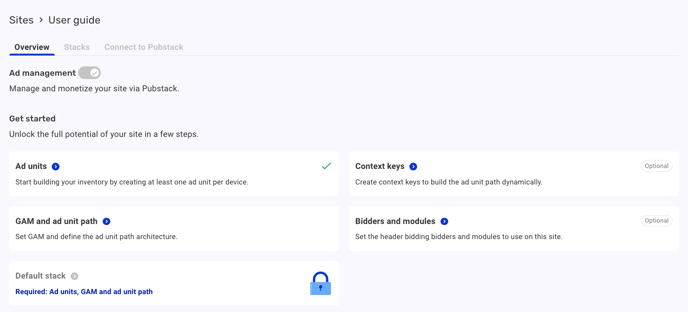
As indicated on the UI, several steps are mandatory before accessing the stack configuration, others are optional.
**Ad units:** at least one Ad unit must be associated to each device *(one ad unit for both devices, or one ad unit per device)*. Please refer to [Ad units](https://help.pubstack.io/ad-units?hsLang=en) to know more.
**GAM and ad unit path:** the GAM Network Id must be filled for the scope, as well as the Ad unit path for the Site. Please refer to [User guide - Google Ad Manager integration](https://help.pubstack.io/integrations?hsLang=en) for more information.
**Context keys** *(optional)***:** allows you to manage your context keys, which will be useful later to create contexts, ad unit paths and handle several stacks within a site. Please refer to [context and context keys](https://help.pubstack.io/context-and-context-keys?hsLang=en) to know more.
**Bidders and modules** *(optional)***:** allows you to access the integration catalogue. Please refer to the following user guide to know more: [Catalog integration](https://help.pubstack.io/integrations?hsLang=en)
Once this step is done, you must configure the Default stack. This step will be discussed in [Stacks](https://help.pubstack.io/stacks?hsLang=en).
When the stack will be set, the tab **Connect to Pubstack** will be unlocked in order to give you a recap of the required technical steps for the site to be monetized.
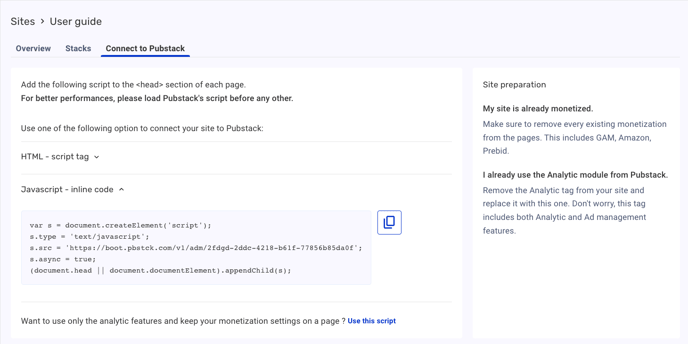
To continue the implementation on your website, please refer to [website side](https://help.pubstack.io/website-side?hsLang=en).
- [What is Pubstack](https://help.pubstack.io/migration/what-is-pubstack?hsLang=en#main-content)
- [Solutions description](https://help.pubstack.io/migration/what-is-pubstack?hsLang=en#solutions-description)
- [Demo and trial](https://help.pubstack.io/migration/what-is-pubstack?hsLang=en#demo-and-trial)
- [Analytics](https://help.pubstack.io/migration/analytics?hsLang=en#main-content)
- [The Pubstack interface](https://help.pubstack.io/migration/analytics?hsLang=en#the-pubstack-interface)
- [Technical documentation](https://help.pubstack.io/migration/analytics?hsLang=en#technical-documentation)
- [Use cases](https://help.pubstack.io/migration/analytics?hsLang=en#use-cases)
- [Ad servers](https://help.pubstack.io/migration/analytics?hsLang=en#ad-servers)
- [API](https://help.pubstack.io/migration/analytics?hsLang=en#api)
- [Ad Management (One)](https://help.pubstack.io/migration/ad-management-one?hsLang=en#main-content)
- [Implementation](https://help.pubstack.io/migration/ad-management-one?hsLang=en#implementation)
- [Technical Documentation](https://help.pubstack.io/migration/ad-management-one?hsLang=en#technical-documentation)
- [Pubstack UI Ad Management](https://help.pubstack.io/migration/ad-management-one?hsLang=en#pubstack-ui-ad-management)
- [Use Cases](https://help.pubstack.io/migration/ad-management-one?hsLang=en#use-cases)
- [Features](https://help.pubstack.io/migration/ad-management-one?hsLang=en#features)
- [Knowledge](https://help.pubstack.io/migration/knowledge?hsLang=en#main-content)
- [Infographics](https://help.pubstack.io/migration/knowledge?hsLang=en#infographics)
- [Technical Documentation](https://help.pubstack.io/migration/technical-documentation?hsLang=en)
- [The Pubstack Academy](https://help.pubstack.io/migration/the-pubstack-academy?hsLang=en#main-content)
- [User-Guides](https://help.pubstack.io/migration/the-pubstack-academy?hsLang=en#user-guides)
- [Webinar Episodes](https://help.pubstack.io/migration/the-pubstack-academy?hsLang=en#webinar-episodes)
- [How to contact Support ?](https://help.pubstack.io/migration/how-to-contact-support?hsLang=en)
- [Pubstack Node](https://help.pubstack.io/migration/pubstack-node?hsLang=en#main-content)
- [Introduction](https://help.pubstack.io/migration/pubstack-node?hsLang=en#introduction)
- [Getting Started](https://help.pubstack.io/migration/pubstack-node?hsLang=en#getting-started)
- [Analytics](https://help.pubstack.io/migration/pubstack-node?hsLang=en#analytics)
- [Rules](https://help.pubstack.io/migration/pubstack-node?hsLang=en#rules)
- [Monetisation Management](https://help.pubstack.io/migration/pubstack-node?hsLang=en#monetisation-management)
[](http://www.pubstack.io?hsLang=en)
We help publishers thrive in a complex programmatic world
Copyright © 2026, Pubstack
```json
{
"@context" : "https://schema.org",
"@type" : "VideoObject",
"contentUrl" : "https://4565186.fs1.hubspotusercontent-na1.net/hubfs/4565186/NewAdM.mp4",
"dateModified" : "2023-07-20T14:55:17.427Z",
"duration" : "PT17.718S",
"height" : 1080,
"name" : "NewAdM",
"thumbnailUrl" : "https://4565186.fs1.hubspotusercontent-na1.net/hubfs/4565186/NewAdM.mp4/medium.jpg",
"uploadDate" : "2023-07-20T14:54:59.682Z",
"width" : 1920
}
```